Android device App Installation & Setup Guide: Update on 1st November 2026
For any Android device or Android Smart TV, such as (Sony, Panasonic, Hisense, JVC, TCL, Toshiba ..etc):
Just download the app from the Google Play Store; the app name is All IPTV Player

Note: If you didn’t find the app on the Google Play Store, please download the app manually. Please find the simple installation steps below:
Manual Installation Method #1
- Go to your TV box or Android device home screen and open the Google Play Store App.
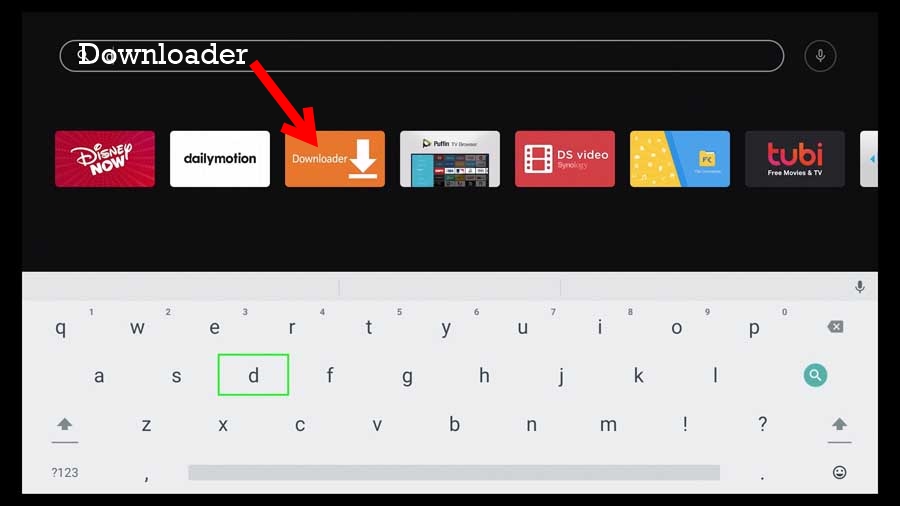
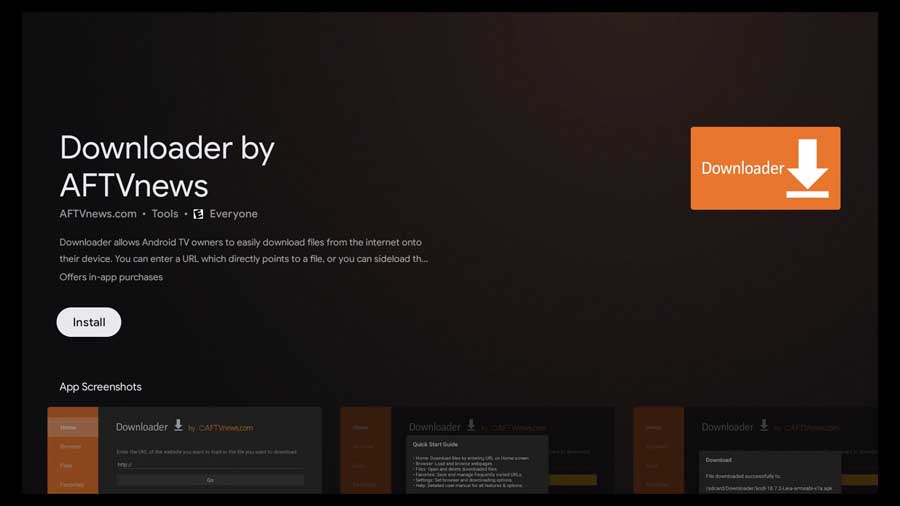
- Search for and install this App: Downloader
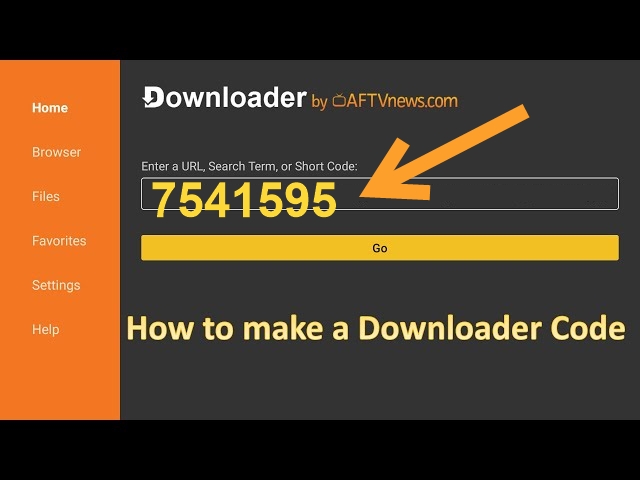
- Open the Downloader app, then type this code: 7541595 , then press Enter. The file will be downloaded automatically; then click on Install.
Manual Installation Method# 2
Go to the Apps section on your device, then use the Chrome browser App, then type this link https://bit.ly/alliptv26 then install the App.
Also, you can use this method below:
- Use your laptop or computer to download the APK file from this link: https://bit.ly/alliptv26
After downloading the app, please copy & paste the APK file into USB storage. - Plug the USB into your Android TV Box, then go to your TV Box Home Screen –> Apps –> AppInstaller, or use the file browser.
Select your USB storage folder and click on the file. The file name is All IPTV Player. Then, just click and install the app. - Go to the file browser. You should be able to find the file (All IPTV Player).
- Then, please select the file and install it.
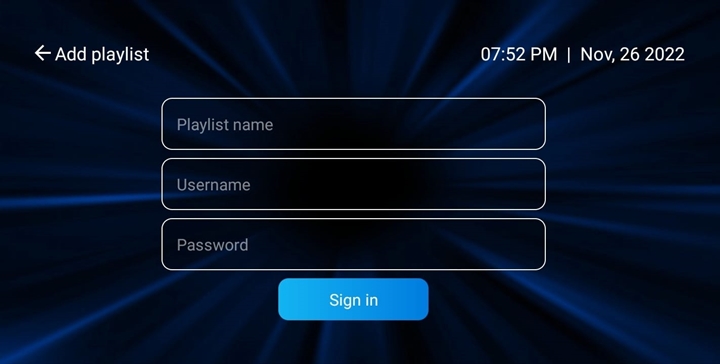
NOTE: If you placed the TV subscription order with us, please check your email & use your Playlist login details as below:
Name: Add any name.
Username: (Check your email).
Password: (Check your email).