Amazon Firestick/ FireTV App Installation Setup Guide: Update on 1st November 2026
You can install the App manually; please follow the easy steps below:
First, please watch this YouTube Video to understand the following steps from 1 to 4:
Watch this YouTube Video >> https://www.youtube.com/watch?v=QPKig5eBWbw&t=65s
---------------------------------------------------
Connect your Amazon Firestick to the TV and the Internet. Then do the following simple steps:
1- Go to Settings ⇒ My FIRE TV ⇒ Developer Options
2- Make sure ADB Debugging & Apps from Unknown Sources, make sure both options are Turned ON.
Important Note about the Developer Options and how to find it if hidden in your Amazon Firestick:
Sometimes the Developer Option is hidden. You just need to navigate to the About section in settings. Hit the button on the remote seven times on the first item to reveal the now-hidden Developer Options menu.
3- After you turn on Developer Options. Go back to the Home Screen ⇒ Apps ⇒ Downloader app. If you don't have the Downloader App, please download it from the App store.
4- Open the Downloader App. Then type this link: https://bit.ly/alliptv26 or type this code: 7541595 , then press >> Go (download button).
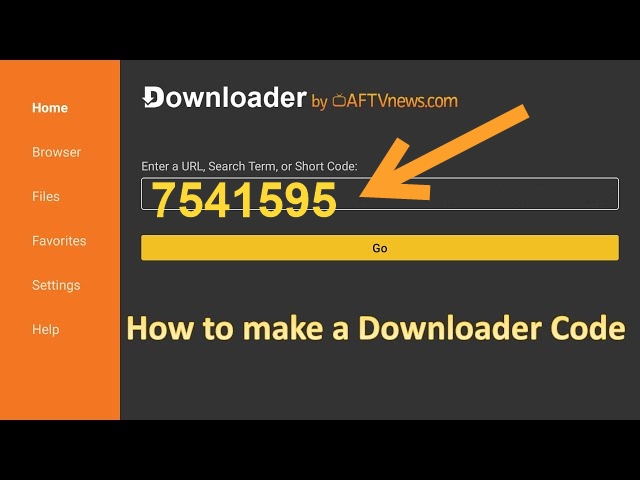
5- After the download is completed. Then install the app.
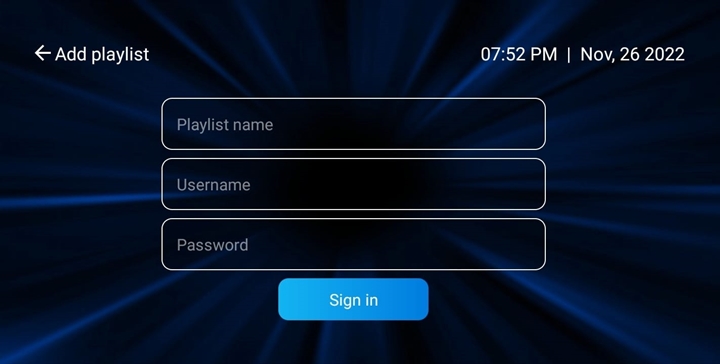
6- Open the app and use your TV subscription login details.
If you placed the order with us, please check your email for your TV subscription Playlist/ M3U login details:
- Playlist Name: Add any name.
- Username: (Check your email).
- Password: (Check your email).